How articles reach your site
Every article goes live on your site's feed. WordPress and webhooks are places it's sent on top of that, and you can always copy an article out.
Written By Damian
Last updated About 2 hours ago
Every article CitedSEO publishes goes live on your site's feed, whatever else you've connected. If you've connected WordPress, it's also posted there, and every webhook endpoint you've added is sent it too. Publishing never waits on a connection: with nothing connected, an article still goes live on its day, on the feed.
The feed
Your feed is always on, and there's no setting for it. It holds every article that's live on your site, at its live version, and it's written again each time an article goes live, changes or is taken down. Your site's own code, or one of the SDKs, reads it to show your articles. Its address is in Settings › Publishing, under Your own site's code. See Publish from your own code.
New articles go live under the path in Settings › Site details › Where articles go, like pipewise.co/blog/article-name.
WordPress
With WordPress connected, each article is also published there as a post: its title, its search snippet as the excerpt, its cover as the featured image and its images in your media library. Each article is one post. An update changes that same post, and taking an article down moves its post to the trash. See Connect WordPress.
Webhooks
Each endpoint you add in Settings › Webhooks gets a signed request when an article goes live or changes, so your site can rebuild or clear its cache at once. It works whatever else you publish to.
If WordPress or a webhook fails
A place that can't take an article never stops it going live. The article is live on your feed, and CitedSEO keeps track of what didn't arrive:
- If WordPress signs CitedSEO out, the sidebar's Needs you list says "WordPress signed me out" with Reconnect. Once you reconnect, the articles it missed are sent again.
- If articles didn't reach WordPress or an endpoint, Needs you says so, with Try again.
Copy an article out
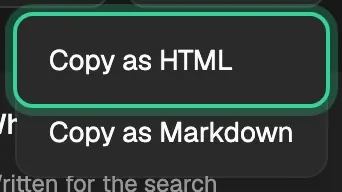
Any written article can be copied from its page, for a site you paste articles into yourself. Open the article, choose Copy, then Copy as HTML or Copy as Markdown. You get the title and cover first, then the whole article.
Related
Was this helpful?
Still need help? Share an idea