Connect WordPress
Connect your WordPress site with an application password, so each article CitedSEO publishes goes up as a post. No plugin needed.
Written By Damian
Last updated About 2 hours ago
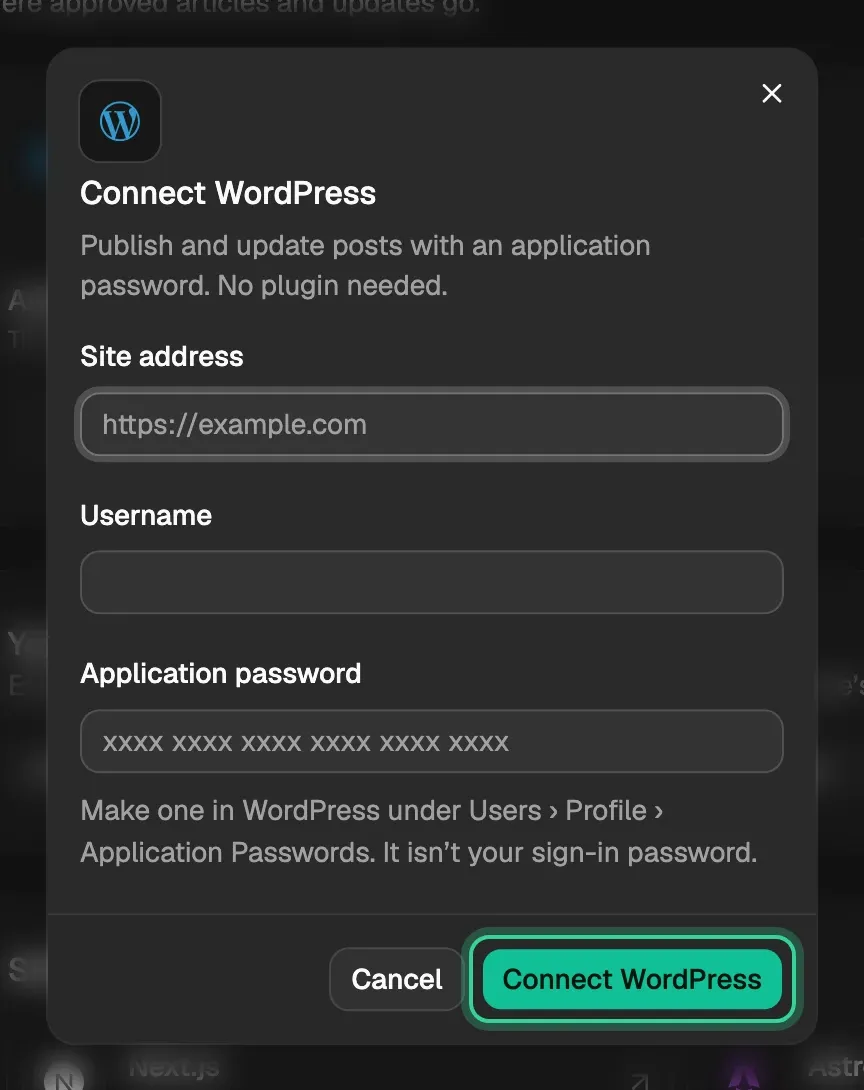
Go to Settings › Publishing, choose WordPress, and enter your site's address, your WordPress username and an application password. CitedSEO checks them with WordPress before it saves anything. From then on, each article it publishes also goes up on your WordPress as a post. No plugin is needed.
Make an application password
An application password is a separate password WordPress makes for one app. It isn't your sign-in password, and you can revoke it in WordPress at any time.
- In WordPress, go to Users › Profile and scroll to Application Passwords.
- Give it a name, such as CitedSEO, and add it.
- Copy the password WordPress shows. It looks like
xxxx xxxx xxxx xxxx xxxx xxxx.
Your site needs to be on https: WordPress only takes application passwords over https.
Connect it
- In CitedSEO, open Settings › Publishing. With nothing connected, choose WordPress under Connect where articles go. Otherwise use Connect at the top, then WordPress.
- Enter your Site address (like https://example.com), your Username and the Application password.
- Press Connect WordPress.
If WordPress turns it away, the dialog says why and keeps what you typed:
- "WordPress didn't accept that username and application password. Check both and try again."
- "Couldn't reach WordPress at … Check the address, and that its REST API is on." A security plugin that blocks the REST API can cause this.
Once it's connected, CitedSEO reads your posts and pages from it at the next daily check.
What goes to WordPress
Each article is published as one post: its title, its search snippet as the excerpt, its cover as the featured image, and its images in your media library. An update changes that same post, and taking an article down moves its post to the trash, where you can bring it back.
Your structured data goes in the post too, when WordPress lets the user you connected add scripts to posts. Otherwise it's left out, since WordPress would strip it and show its text.
Who each post is by
Once connected, the WordPress card shows Authors: the WordPress user each byline posts as. You can pick one for each of your authors and for your site's own byline.
WordPress only lets an editor or administrator post as someone else. If you connected as another kind of user, every article posts as that user, and the card says so. Reconnect as an editor or administrator to pick a user for each byline.
If WordPress signs CitedSEO out
If the password is revoked or stops working, the card shows Reconnect, and the sidebar's Needs you list says "WordPress signed me out". Your articles still go live on your feed in the meantime. Make a new application password, press Reconnect and enter it: anything WordPress missed is sent again.
Disconnect
Disconnect on the WordPress card stops CitedSEO publishing there. Articles already on your WordPress stay.

Related
Was this helpful?
Still need help? Share an idea