Why hasn't my article gone live?
An article goes live only once it's written, has passed its checks, is approved and its day comes. Here's how to tell which step it's on.
Written By Damian
Last updated About 2 hours ago
Open Articles and look at the article's label: it says which step the article is on. Most often it's Ready for your OK (waiting for you to press Publish) or Scheduled (approved, and waiting for its day). If something only you can fix is in the way, the sidebar's Needs you list says so.
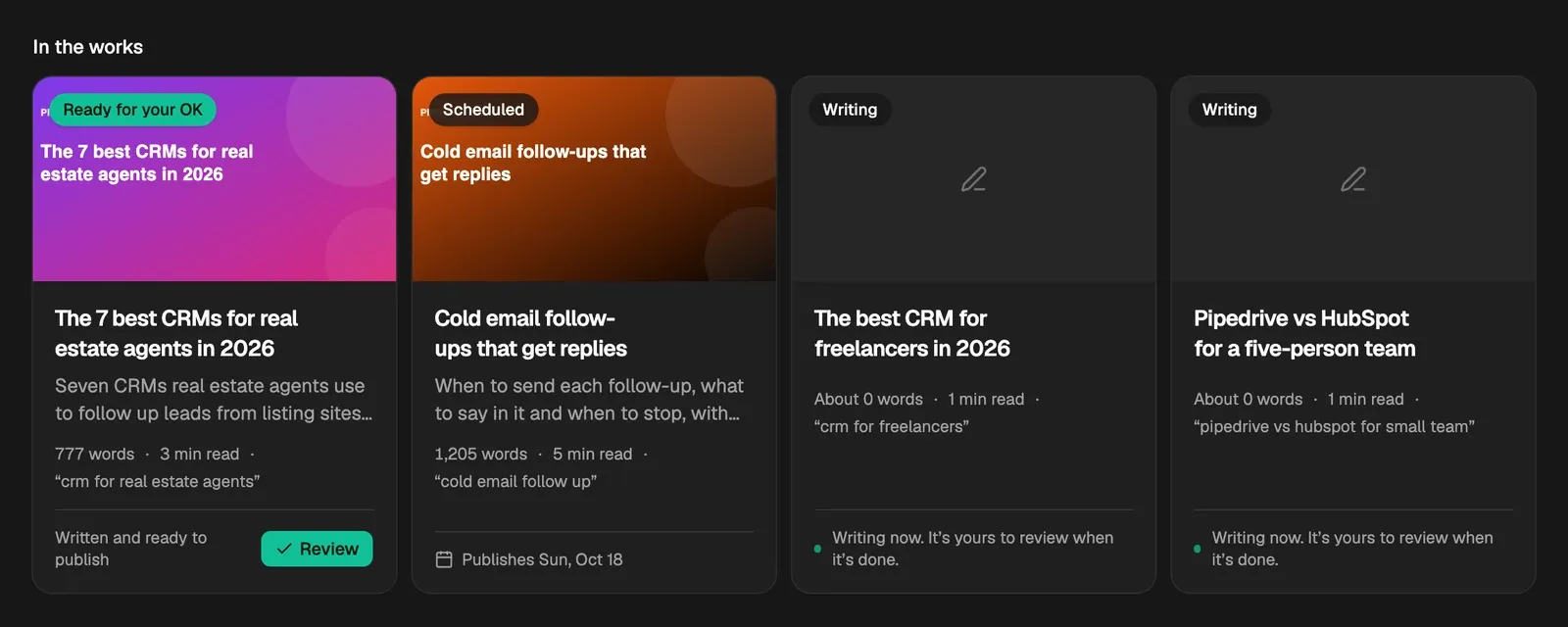
What each label means
Waiting for its day
Only one article or update goes live each day, at your site's publish time. If several are approved, they go one a day, so a newly approved article can be a few days out. See When articles go live.
Waiting for your OK
If New articles is off in Autopilot, every new article waits for you as Ready for your OK. An update to an article you already have waits in Opportunities › Needs your OK until you approve its card, unless its switch is on. A card you sent back with Hold for my OK waits for you whatever the switch says.
Live on your feed, but not on WordPress
Publishing never waits on WordPress. If WordPress turned an article away, it's still live on your feed, and Needs you tells you:
- "WordPress signed me out": press Reconnect and enter a new application password. What WordPress missed is sent again.
- "… didn't reach WordPress": once WordPress is answering, press Try again in the sidebar.
The same goes for a webhook endpoint, named by its address.
Is your site paused?
A paused site stops all work, so nothing new goes live until you resume it in Settings › Site details. What's already live stays.
Tip: Needs you is also sent to you once as an alert, unless you've turned off Something needs fixing in Settings › Notifications.
Related
Was this helpful?
Still need help? Share an idea