Connect Search Console
CitedSEO reads your clicks, searches and positions from Google Search Console. Connecting takes one click and an OK at Google.
Written By Damian
Last updated About 2 hours ago
Go to Settings › Search & analytics and press Connect beside Google Search Console. Google asks you to sign in and allow read-only access; once you do, you come back to CitedSEO and it starts reading your last 16 months of numbers. CitedSEO never changes anything in Search Console.
Why it matters
Search Console is where CitedSEO learns what to fix and measures what each change did. Without it, the opportunities that need Google's numbers (articles just off page one, articles losing clicks, titles people pass by) can't be found, and the Google page, Home's clicks chart and your reports have nothing to show. Wherever those numbers would be, the app shows the Connect button instead.
Step by step
- Open Settings › Search & analytics.
- Press Connect beside Google Search Console.
- Sign in to Google with the account that can see your site in Search Console.
- On Google's page, leave the Search Console box ticked and allow access.
- You come back to Settings › Search & analytics, and the app says "Search Console is connected".
You can also connect while adding your site: the Connect Search Console step has a Connect with Google button.
Which property CitedSEO reads
CitedSEO picks your site's property in Search Console for you. It looks for the domain property first, then the address properties, https before http and without www before with it. The Google account needs to be verified for that property.
One Google account is connected per site. Connecting a different account replaces the first.
After you connect
The first read starts within 15 minutes. Until it's done, the Google page says "I'm reading your last 16 months from Search Console", and the numbers show up there once they're in, usually within the hour. After that, CitedSEO reads Search Console again once a day.
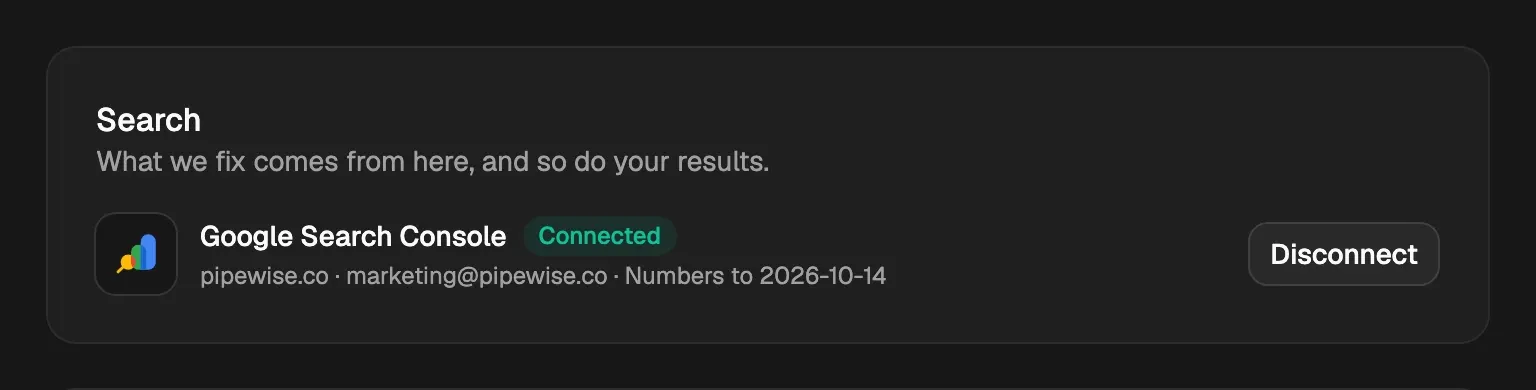
The card in Settings › Search & analytics shows the property, the Google account and Numbers to the last full day it has read.
If it didn't connect
Reconnect or disconnect
If Google stops letting CitedSEO read your numbers (for example, the account's access was removed), the card shows Signed out and Reconnect. Reconnecting picks up where it left off, and the numbers already read stay.
Disconnect stops CitedSEO reading Search Console. The numbers it has already read stay.
Related
Was this helpful?
Still need help? Share an idea